Manage Inventory Tracking Settings
Setting up locations properly in eGrow Connect is an essential part of eGrow Connect and a prerequisite for many of the transactions. To view the location setup for your nursery, go to  System Setup, then find the Inventory Tracking folder.
Note: These are typically setup during a new customer’s onboarding, but you can always make needed changes. Keep in mind that eGrow doesn’t allow you to make changes to some essential system defaults and settings.
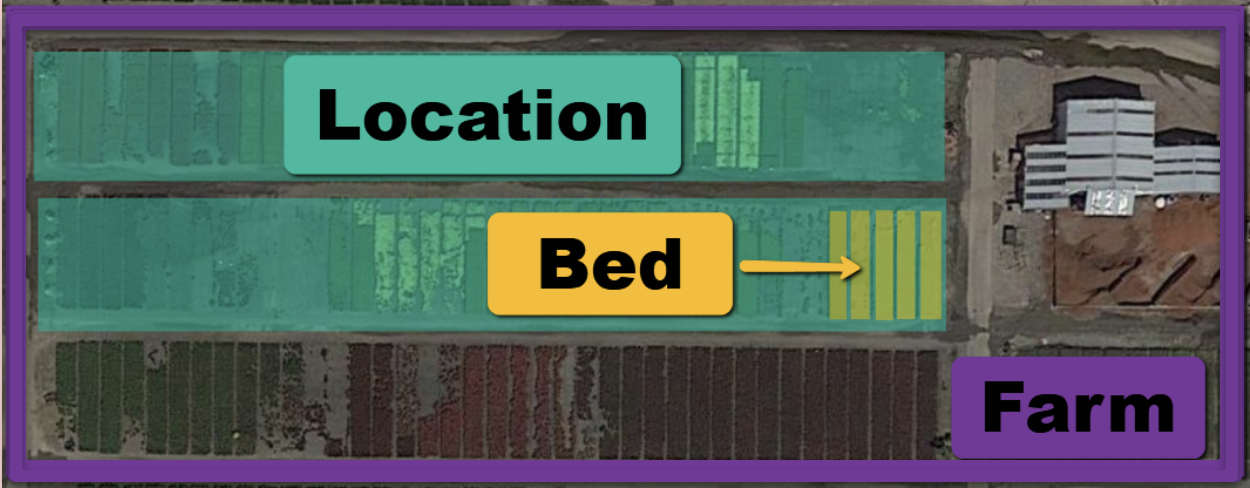
- Farm or Location Group: Here you can manage the names of the farms or location groups of your nursery.
- Location Type: Here you can manage location types for your nursery.
- Location: Here you will manage the names and configuration data for each location. eGrow Connect also provides a Bed option to further specify a location for crops.
- Ready Dates: Here you will manage ready dates to choose from everywhere in the system having a Ready date drop down menu.
- Dump Reasons: Here you will manage the reasons available to select when entering an inentory Dump transaction.
- Count Reasons: Here you will manage the reasons available to select when entering an intentory Count transaction.
- Availability Templates: Here you will manage the names of each of the ten Availability Templates.