Master Purchase Order Detail Description
This is part of the Purchasing Add-on Module.
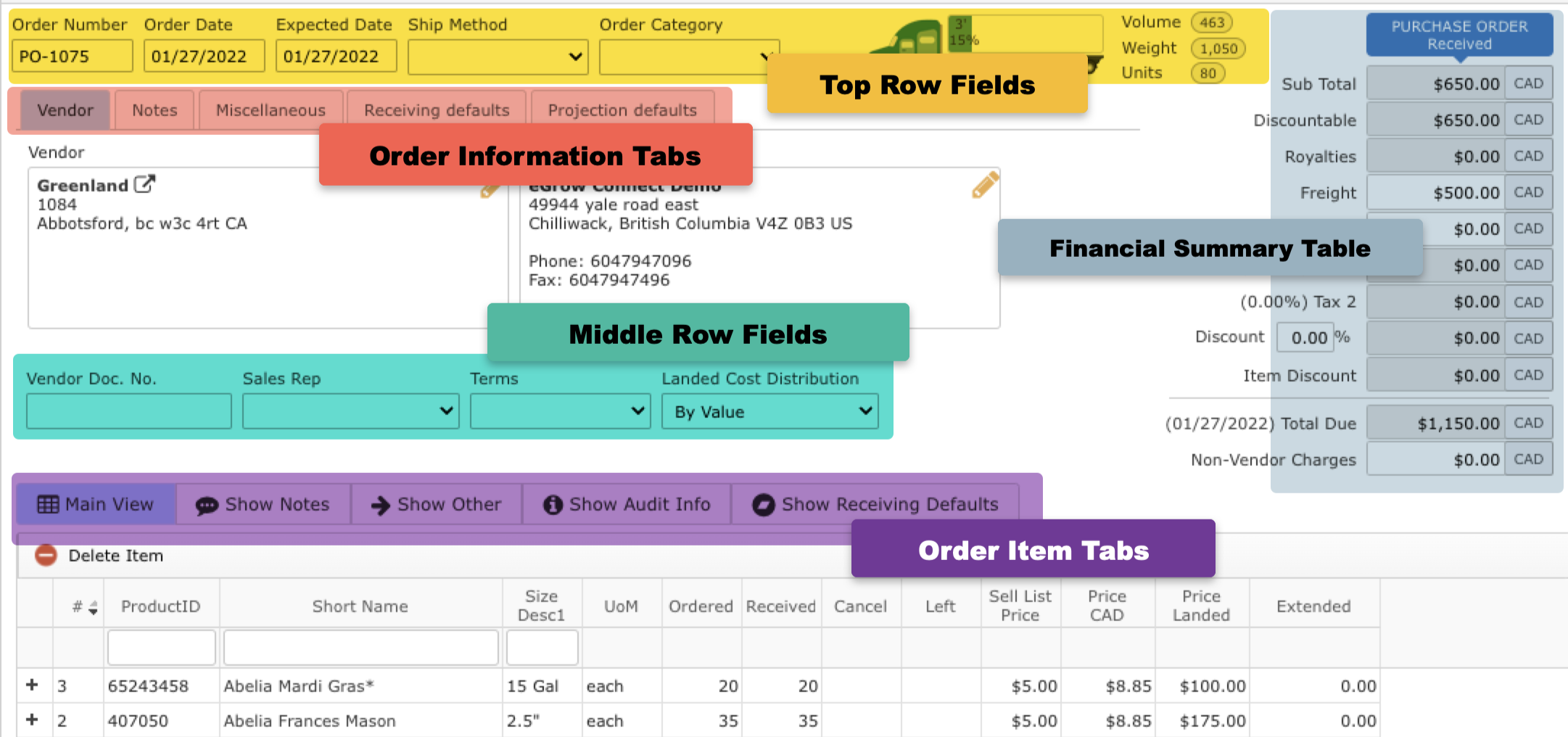
Top Row Fields
- Order Number: An eGrow Connect auto generated document number which is not editable
- Order Date: Date the order was placed
- Expected Date: Date the full balance if items are anticipated to be shipped
- Ship Method: Selected shipping method from the options managed in
 System Setup > Sales > Ship Method
- Order Category: Selected order category from the options managed in System Setup > Purchasing > Order Category
- Truck Icon: Visual display of how much space the order will take up on a truck according to the eGrow Connect load calculations
Financial Summary Table
A financial summary of the entire order.
- Sub total: Combined purchase cost of all items on the order
- Discountable: Combined cost of all the items on the order which have ‘yes’ marked in the “Disc y/n” column as seen on the Show Other item list tab
- Royalties: Combined cost for all plant royalties
- Freight: Enter a dollar amount for the anticipated cost of shipping
- Other: Enter any other costs associated with the order
- Tax 1 and Tax 2: Tax percentages to be added to the total as determined by the tax scheme selected on the Miscellaneous order info tab
- Discount: The percentage entered in the % field will be applied to the amount in the Discountable field above
- Item Discount: The total combined amount from all itemized discounts as entered in the “Disc %” column on the Show Other item list tab
- Total Due: Total net amount due on the order
- Vendor
- Notes
- Miscellaneous
- Projection Defaults
- Vendor: Select the Vendor address items are to be shipped from .
- Deliver to: Select your ship to address that items are to be delivered to.
Enter an external and Internal notes that apply to the entire master purchase order. Internal notes will not appear on printed sales order reports. Learn more about purchase order notes.
- Tax Scheme: Select a tax scheme for the order from the options managed in System Setup.
- Exchange Rate: With the Multi-Currency Add-on Module, this option appears for the order which can be updated to set the currency and exchange to your defualt currency as needed.
Information entered here will be applied when using the  Add to Projections option in the taskbar to add items on the master purchase order to projected inventory. Add to Projections option in the taskbar to add items on the master purchase order to projected inventory. |
Middle Row Fields
Most of these fields will autofill with default information from the Vendor module.
- Vendor Doc No.: A document number for the order supplied by the vendor
- Sales Rep: The vendor contact that handled the sale which is selected from a list of all contacts defined for the vendor with the "Is Sales Rep" option checked
- Terms: The payment terms of the sale selected from options defined in System Setup
Item List Tabs
Along with the item's ProductID, Short Name, and Size Desc1, each tab has the following additional fields.
- Main View
- Show Notes
- Show Other
- Show Audit Info
- Show Release PO
- U/M: Unit of Measure for the item
- Ordered: Quantity ordered
- On PO: Quantity that have been released on purchase orders
- Received: Quantity that have been received on purchase orders
- Cancel: Quantity subtracted from ordered quantity because the items were canceled
- Left: Quantity not yet received
- Sell List Price: The sales list price as entered in the Item Size Library
- Unit Price (Currency): The vendor's price in their currency; with Multi-Currency Add-on Module, this price will be converted to your default currency using the Exchange Rate defined on the Miscellaneous tab above
- Extended: Item subtotal amount (= Unit Price X Ordered)
A place to write notes about individual items on this order.
- Item Notes: Notes for the customer about the plants (ie. These may be a bit small)
- Internal Notes: Notes for your internal use (ie. special instructions about an item once it is received)
- Royalty/each: Cost added to the price per item to for royalty fees
- Disc y/n: If set as Yes, the order summary Discount and line Disc % percentage values will be applied to this item and if not neither order nor line discounts will be applied to this item (you can change the default of items to be Not Discountable or change them individually on each order)
- Disc %: A discount percentage that only applies to that line item
- Taxable: If set as Yes, the tax scheme of the order will be applied to this item and if not no taxes will be applied to this item
- Footage: The calculated footage of each item
- Weight: Combined weight of the items based on the weight set in the Item Sizes Library
- Created: The date and time this item was originally added
- Modified: The date and time of the last update to this item
- User: The name of the user who added the item
- Qty to Release: Enter a quantity here to be added to a new purchase order before releasing a PO
- Ordered: Total ordered on the master purchase order
- On PO: Quantity that are included on an open released purchase orders
- Received: Quantity received
- Cancel: Quantity subtracted from ordered quantity because the items were canceled
- Left: Quantity not yet received on purchase orders
- Sell List Price: The sales list price as entered in the Item Size Library
- **Unit Price (Currency): The vendor's price in their currency; with Multi-Currency Add-on Module, this price will be converted to your default currency using the Exchange Rate defined on the Miscellaneous tab above
- Extended: Item subtotal amount (= Unit Price X Ordered)
|