Mobile App: Picking and Loading Items
While processing a shipping load, you can track the Picking and Loading of items in real time on mobile devices using the eGrow Connect Mobile Application. Changes made on the app will automatically and immediately transfer into the Desktop version of eGrow Connect.
Picking Items
- Tap on Shipping Loads.
- Swipe left on the correct load and tap Pick Items.
- You will see a list of items to be picked with information about each.
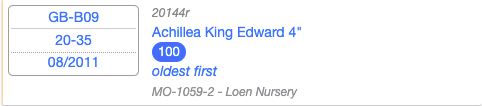
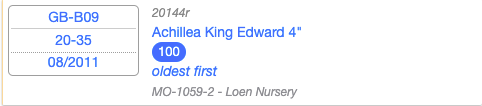
- On the left is the location, bed information if any, and ready date for the crop.
- On the right is the Product ID, Name and size of crop, number of items to pick, picking notes if any, order number and customer name.
- Swipe left on each item to Pick All items.
- Swipe right to Change the Pick Location, here you can enter the quantities taken from various locations, if items were not all picked from the same location. Then hit Update at the top.
Loading Items
- Tap on Shipping Loads.
- Swipe left on the load and tap Load Items.
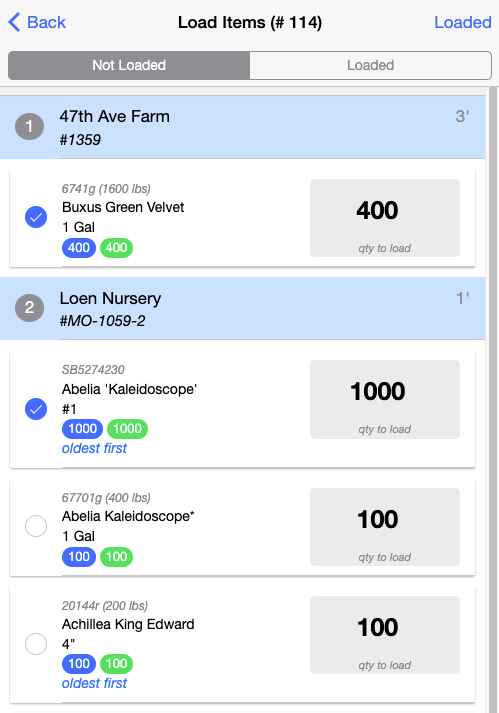
- You will see the items listed by sales orders in the order that they should be loaded
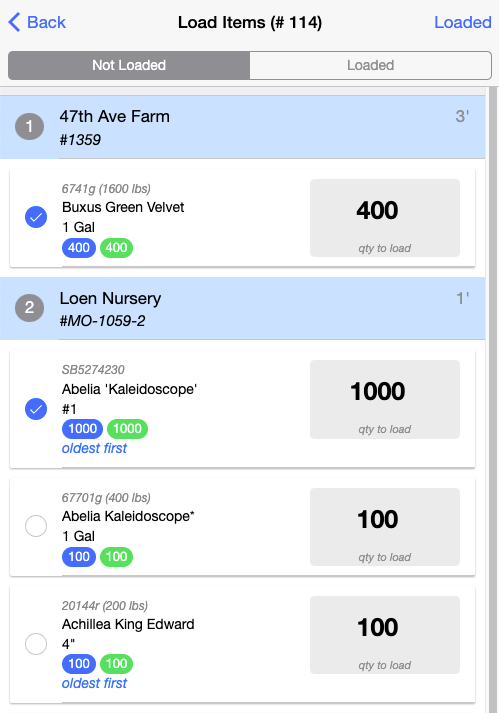
- Numbered stops for the shipment, first to be loaded will be the last to deliver.
- Each item has Product ID, Name, Size, Number Ordered in blue, Number Picked in green, picking notes about the crop if any, and quantity to load on the right side
- To mark an item as loaded, tap the circle on the left to mark it loaded, then hit Loaded at the top to save changes.